
Web application firewallZero Trust
Login page
Customize the account sign-in page and preview the result.
The account login page settings apply to every Zero Trust application in the account. They change the sign-in content without changing application policies.
Page settings
- Open Zero Trust > Login page in the account navigation.
- Enter the text you want to customize.
- Enter an HTTPS Support URL, if needed.
- Select Preview login page.
- Select Save Zero Trust.
The preview includes your unsaved text. Saving ends existing application sessions across the account as the update takes effect.
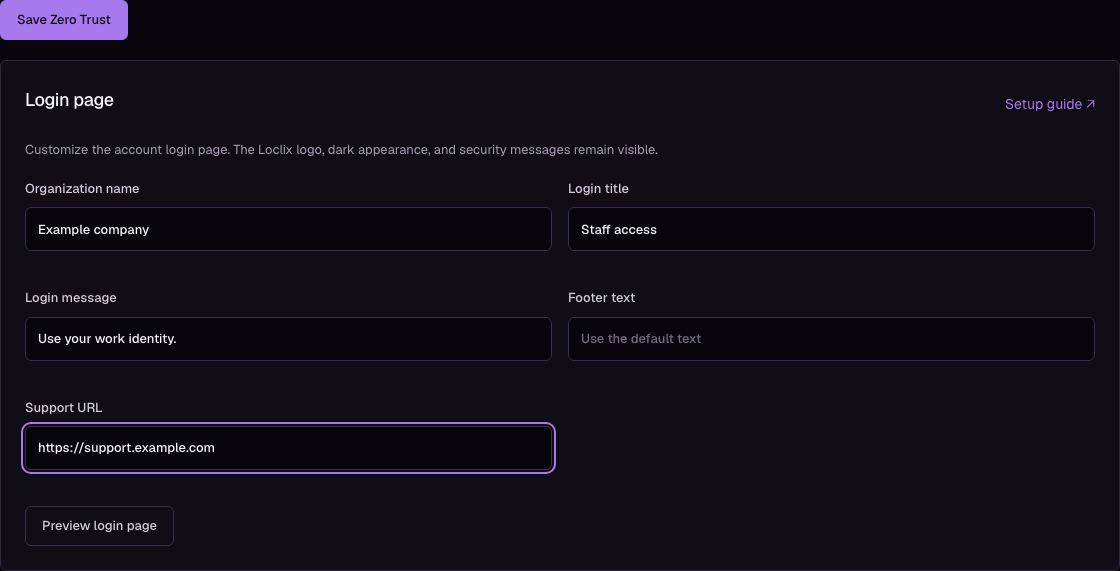
The screenshot shows the current English dashboard with synthetic example text.
Available fields
| Dashboard field | Purpose | Maximum length |
|---|---|---|
| Organization name | A label above the login title | 80 bytes |
| Login title | Replaces the application name on the sign-in page | 120 bytes |
| Login message | Instructions above the provider choices | 500 bytes |
| Footer text | Footer content on sign-in and email-code forms | 200 bytes |
| Support URL | HTTPS link labelled Contact support | 2048 bytes |
Leave a field blank to use its default. Text displays as plain text. The official Loclix logo, dark appearance, provider controls, and security errors remain part of the page. Email-code forms use the organization name, footer, and support link, with their own instructions for each step. See Email codes.