
Traffic policies
Allow or block office traffic by source subnet, destination subnet, protocol, and port.
Policy setup
Traffic policies control forwarded IPv4 connections for one interconnect. Saving briefly interrupts connections and resets live counters. Recorded activity remains within its retention limits.
- Open Private Connect and select Open dashboard for the office.
- Select Traffic policies.
- Select Add traffic rule.
- Enter Rule name.
- Enter the source and destination subnets, or leave them blank to match all addresses.
- Choose Protocol and, for TCP or UDP, an optional Destination port.
- Choose Traffic action.
- Set the rule order with Move rule up or Move rule down.
- Choose Unmatched traffic.
- Select Save interconnect.
An interconnect supports up to 128 traffic rules. Unmatched traffic defaults to Allow. Selecting Block requires explicit allow rules for the connections your office needs.
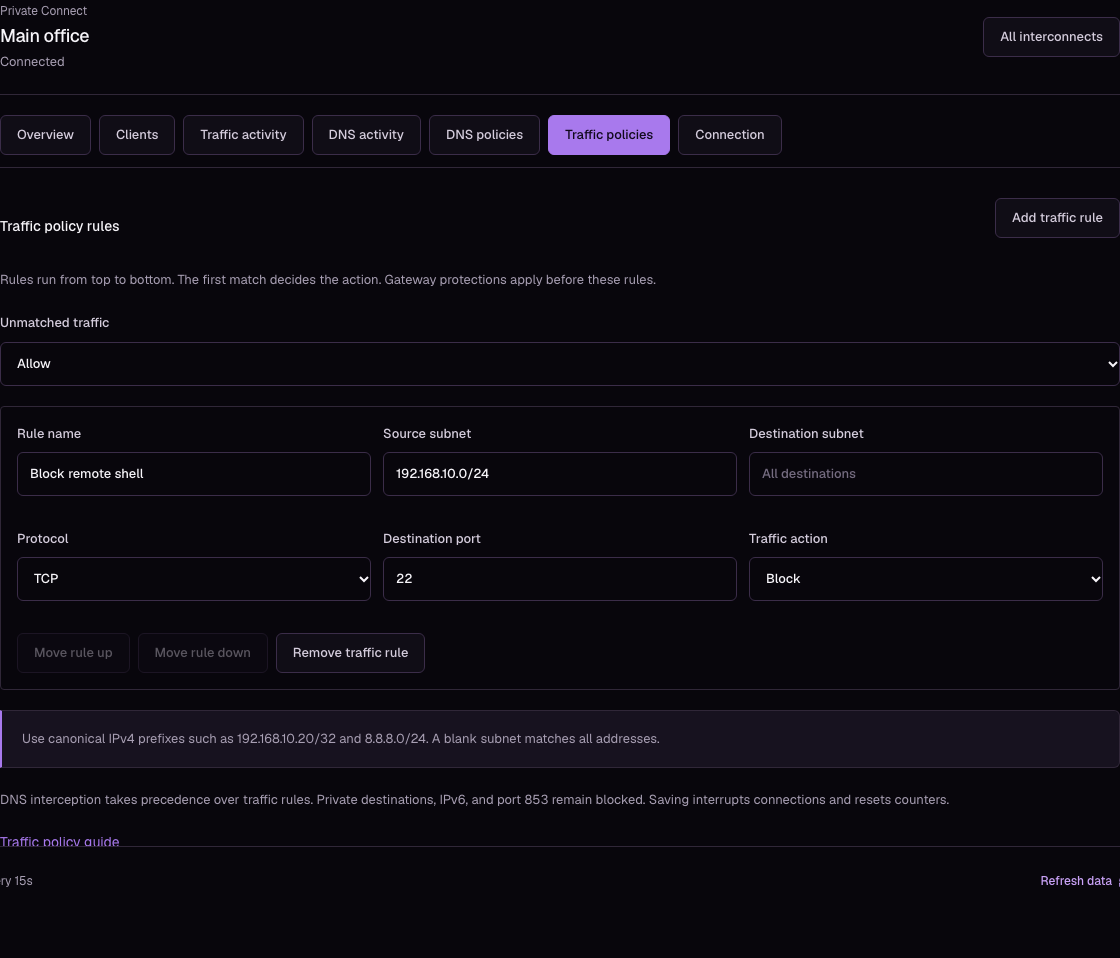
Rule fields
| Field | Use |
|---|---|
| Source subnet | Match office clients with a canonical IPv4 prefix, such as 192.168.10.0/24. Use 192.168.10.20/32 for one client. The prefix must stay within assigned office addresses. |
| Destination subnet | Match a remote IPv4 prefix, such as 8.8.8.0/24, or one address with /32. |
| Protocol | Choose ANY, TCP, UDP, or ICMP. |
| Destination port | Match one TCP or UDP port from 1 to 65,535. Leave blank to match all ports. |
| Traffic action | Allow the matching traffic or block it. |
Rule order
Rules run from top to bottom. The first match decides the action. If no rule matches, Unmatched traffic applies.
For example, allow TCP port 443 from 192.168.10.20/32 to a required service first, then block other TCP port 443 traffic. The exception must stay above the broader block rule. Match the destination's actual IP range; these traffic rules do not match website names or URL paths. Use DNS policies for domain responses.
Gateway protections
Office source validation and built-in gateway restrictions apply before custom traffic rules. Private and reserved destinations, IPv6 forwarding, and TCP or UDP port 853 remain blocked. An allow rule cannot override these protections.
Port 53 DNS interception also takes precedence: DNS requests are handled by DNS policies, even if a traffic rule would block forwarding to their original resolver. Return traffic is restricted to established or related connections. Your rules do not open unsolicited inbound access.
Policy checks
Send a test connection from a matching office device. Open Traffic activity, enter its Source IP, and filter by Policy action. Check the destination, port, action, and policy identifier. A block records the attempt; an allow decision does not guarantee that the remote server or another firewall accepted it.
DNS over HTTPS can share normal HTTPS destinations. Blocking known resolver IPs helps control specific services, but comprehensive encrypted-DNS enforcement also needs router and device controls.
See activity visibility and limits before using the logs for an investigation.