
Challenge page branding
Customize verification page text and accent color with an interactive preview.
Use Configuration > Challenge page branding to customize the verification page for one website. It uses the same interactive editor as Error pages.
Page editor
- Open the website’s Configuration page.
- Find Challenge page branding.
- Select text in Interactive preview, or choose a field from Edit element.
- Enter the text in the panel beside the preview. On mobile, this panel appears below it.
- Choose Accent color to set the accent with the color picker or a six-digit hexadecimal value.
- Select Save changes at the bottom of the configuration form.
For example, set Brand name to Example security, Heading to Quick security check, and Accent color to #d0b0ff. The preview updates before you save.
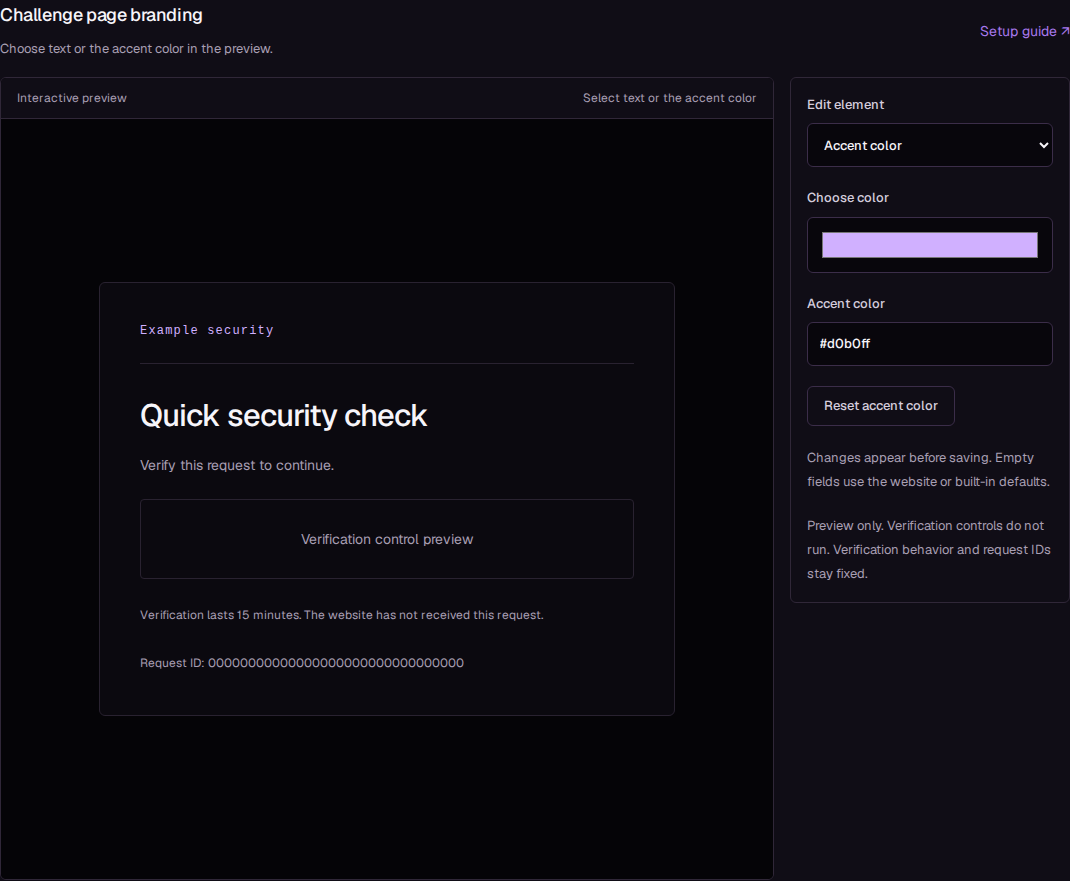
The screenshot shows the English dashboard with example text. The verification control is a placeholder in this preview.
Fields and defaults
| Field | Configuration |
|---|---|
| Accent color | A six-digit hexadecimal color, such as #d0b0ff. Select the card in the preview to edit it. |
| Brand name | Up to 80 bytes of text. |
| Heading | Up to 120 bytes of text. The built-in heading is Security verification. |
| Message | Up to 600 bytes of text. |
Limits count UTF-8 bytes, so some characters use more than one byte. Text appears as plain text; HTML and scripts are escaped. Select Reset for a field to clear it, then select Save changes. Empty fields use the built-in text or inherited reseller branding. A reseller logo remains part of that inherited branding.
Verification controls
The preview does not run verification, send a provider request, or create a verification session. You can edit branding before a verification provider is available. Live challenges still require a configured provider.
The page keeps the configured verification layout. Google reCAPTCHA Enterprise score-based pages show verification status; policy-based pages include Continue. Other provider layouts show a verification control placeholder in the editor. Branding changes do not change verification requirements, token validation, request IDs, or verification duration.
Error pages separately control failed verification responses and other HTTP errors. Challenge branding does not replace those settings.
Troubleshooting
If the preview fails, select Retry preview. Check text limits and use a color such as #d0b0ff, including the # and six hexadecimal digits.
After saving, reload Configuration to confirm the values were retained. If the live page cannot verify visitors, contact support with the request ID. Changing branding does not repair a provider configuration problem.