
Error pages
Set a shared visitor-page style and customize individual HTTP errors with an interactive preview.
Use Configuration > Error pages for a website to customize the pages visitors see after a blocked request or a connection failure. You can set shared defaults and override individual HTTP statuses from 400 through 599. Changes affect this website only.
Shared defaults
- Open the website’s Configuration page.
- In Error pages, choose Default for all pages from Error page.
- Select text or a background in Interactive preview. You can also choose a field from Edit element.
- Enter the text or choose the color in the panel beside the preview. On smaller screens, this panel appears below it.
- Select Save changes at the bottom of the configuration form.
The preview updates before you save. The default preview shows HTTP 403. Each field left empty uses its built-in or inherited branding default. Empty headings and messages retain the text appropriate to the actual error.
A shared background or accent applies to every page that does not override that field. For example, change the default background to #171022 and leave individual backgrounds empty to use that color throughout.
Individual pages
Choose an HTTP status from Error page, such as HTTP 403 · Forbidden. Edit the fields that need different values. The menu marks pages with saved or draft overrides as (custom).
For example, set the 403 Heading to Access restricted and leave Page background empty. The page uses that heading and the shared background. Changing the default background later also changes this page. Giving the 403 page its own background keeps that color when the default changes.
Select Use website default to remove all overrides for the selected status. Select Save changes to apply the removal. You can customize up to 100 individual pages. To customize another after reaching the limit, return an existing custom page to the website default.
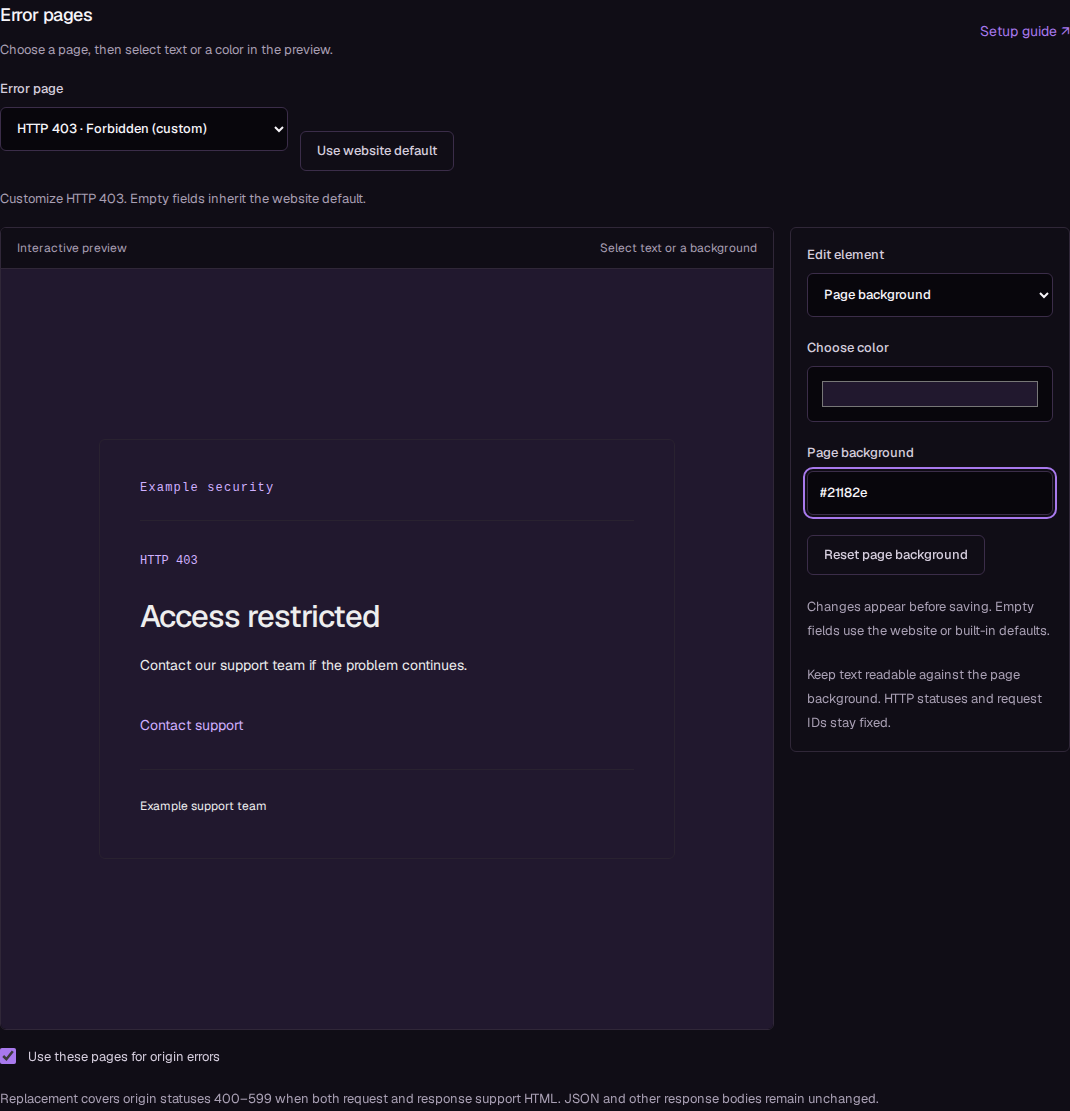
The example shows a custom 403 page in the English dashboard. On mobile, the same controls appear below the preview.
Fields and limits
| Field | Configuration |
|---|---|
| Page background | Page and card background as a six-digit hexadecimal color, such as #171022. |
| Accent color | HTTP status, branding text, and support link color, such as #d0b0ff. |
| Text color | Heading, message, and footer color. Keep it readable against the background. |
| Brand name | Up to 80 bytes of text. Reseller logos remain part of the inherited branding. |
| Heading | Up to 120 bytes of text. |
| Message | Up to 1,000 bytes of text. Line breaks are preserved. |
| Footer text | Up to 240 bytes of text. The request ID stays fixed. |
| Support URL | An HTTPS address without credentials, up to 2,048 bytes. |
These limits count UTF-8 bytes, so some characters use more than one byte. Text appears as plain text; HTML and scripts are escaped. Reset clears the selected field so it inherits the appropriate default. The support link shown in the editor is an example and does not navigate when selected.
Origin errors
Enable Use these pages for origin errors and select Save changes to replace eligible HTML error responses from your server. Replacement covers HTTP 400–599 when the visitor accepts HTML and the origin returns HTML or no content type. JSON and other response bodies keep their original content. Successful responses also stay unchanged.
Eligible stale cached content still takes precedence over an error page. Loclix cannot replace a response after it has started sending it to the visitor.
Results and troubleshooting
The same configuration covers Loclix-generated rule blocks, rate limits, invalid requests, verification failures, and origin connection errors. Use the same editor under Challenge page branding to customize the verification page. API route policies retain their JSON error responses. Other non-HTML error responses can use the configured heading and message as plain text.
Customization does not change HTTP statuses, retry headers, or request IDs. Errors before Loclix identifies the website, such as an initial TLS or HTTP parsing failure, cannot use its page settings.
If the preview fails, select Retry preview. Check for invalid colors, text limits, or a support URL that does not start with https://. If a page keeps a previous color or heading, select its HTTP status and check for an individual override. After saving, reload Configuration to confirm the values were retained.